Proceed and disable the following two (2) Update services using registry:
- Windows Update Medic Service (WaaSMedicSvc)
- Update Orchestrator Service (UsoSvc)
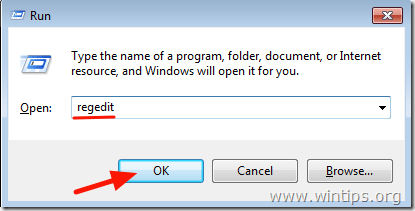
1. Simultaneously press the Windows + R keys to open run command box.
2. Type regedit and press Enter.
3. At the left pane, navigate to this key:
- HKEY_LOCAL_MACHINE\SYSTEM\CurrentControlSet\Services\UsoSvc
4. At the right pane double-click at Start value
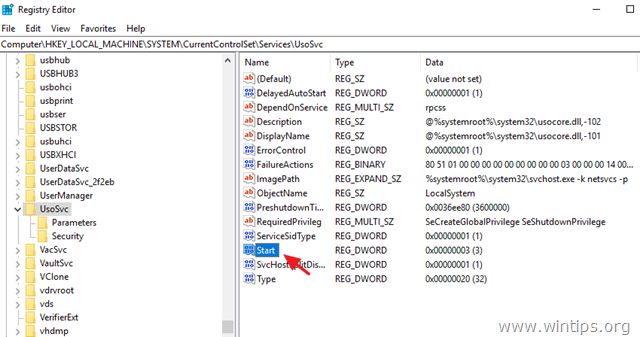
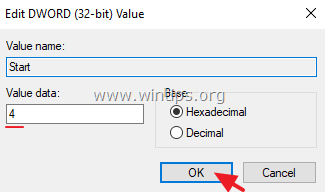
5. Set the value data (from “3”) to 4 and click OK.

6. Then at the left pane, navigate to this key:
- HKEY_LOCAL_MACHINE\SYSTEM\CurrentControlSet\Services\WaaSMedicSvc
7. At the right pane double-click at Start value
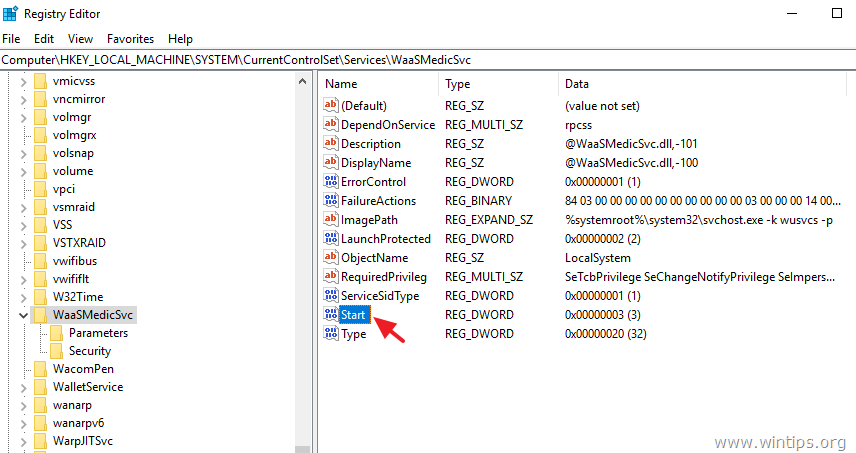
8. Type 4 at Value data box and click OK.
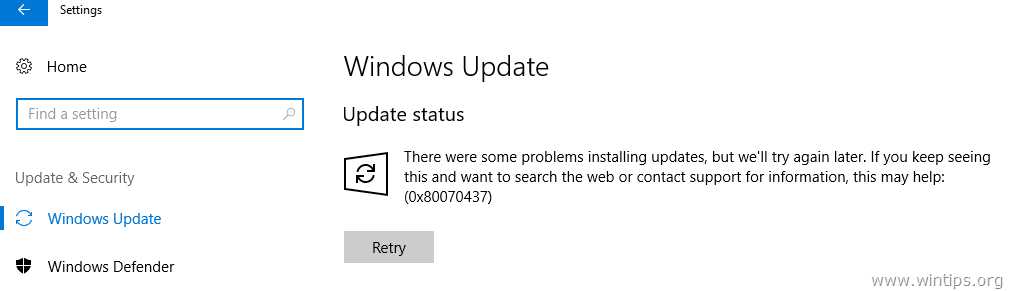
9. From now on, you will receive the following error message whenever you try to download or install updates: “There were some problems installing updates,but we’ll try again later. (0x80070437) or, you’ll see a blank window (without any options) when going to Settings > Update & Security > Windows Update.
10. Proceed to step-3 below.


Leave a Reply